The previous two OCR tutorials focused on inference using pre-trained models, showcasing how to use OCR models at the application level.
But what if we have our own dataset, and off-the-shelf OCR models can’t accurately recognize our PDFs or image files?
The answer is to train and fine-tune our own model.
In this article, we’ll walk through how to train your own OCR model using PaddleOCR.
PaddleOCR is an open-source text recognition toolkit based on Baidu’s PaddlePaddle deep learning framework. It offers a complete OCR solution covering data preparation → text detection → text recognition → post-processing. PaddleOCR supports Chinese, English, and over 80 other languages, and handles complex text scenarios like vertical text, curved text, and handwriting. It’s widely used in scenarios such as bill recognition, document digitization, license plate recognition, and industrial applications.
PaddlePaddle/
- PaddleOCR        # Image recognition
- PaddleNLP        # Large language model toolkit
- PaddleDetection  # End-to-end object detection development kit
- PaddleServing    # Deployment service
- PaddleHub        # Pre-trained models
- PaddleX          # Low-code development tool
2.1.2 det (Text Detection)
Text detection: Using detection algorithms to locate text lines in images.
2.1.3 rec (Text Recognition)
Using recognition algorithms to identify the actual text content from the detected text lines.
2.1.4 Key Information Extraction (kie)
Key information extraction has many practical applications, such as form recognition, ticket information extraction, and ID card information extraction. However, manually extracting or collecting key information from these document images is time-consuming and labor-intensive. Automatically integrating visual, layout, text, and other features in images to complete key information extraction is both valuable and challenging.
Kie in document images generally includes two sub-tasks:
① ser: Semantic entity recognition, classifying each detected text segment.
② re: Relation extraction, classifying each detected text segment (e.g., into questions (keys) and answers (values)), then matching each question with its corresponding answer, essentially completing a key-value pairing process.
To complete key information extraction, at least two steps are required: first, use an OCR model to extract text positions and content (det + rec), then use a kie model to extract key information based on images, text positions, and text content. Common training methods are: (1) Directly using ser for classification, i.e., det + rec + ser; (2) Joint ser + re for key-value pairing, i.e., det + rec + ser + re.
2.1.5 Evaluation Metrics
PaddleOCR calculates three OCR detection metrics: precision, recall, and hmean (F1 Score). In most scenarios, we focus on hmean – the closer it is to 1, the better the model’s prediction performance, but we need to watch out for overfitting.
2.2 Architecture
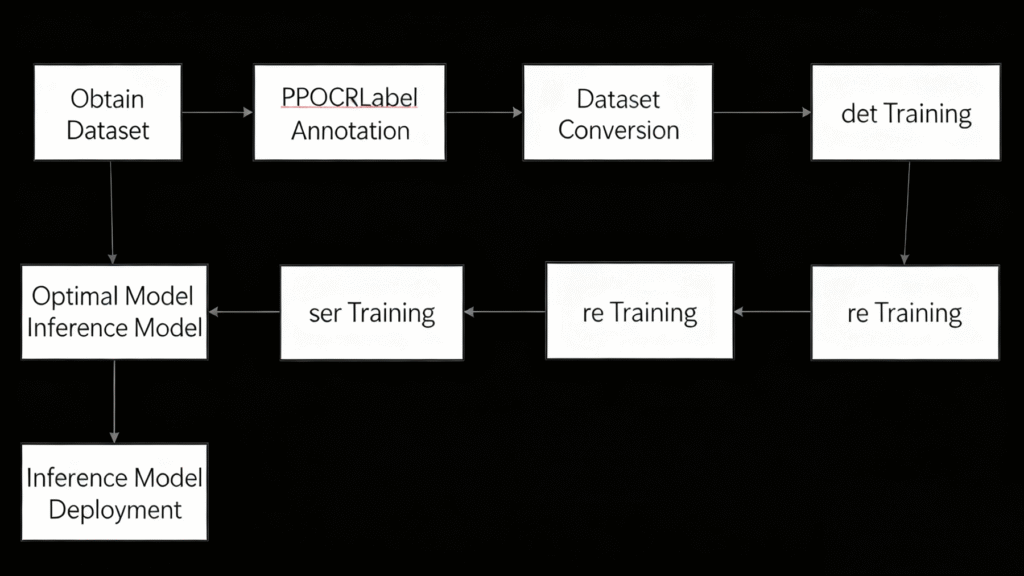
2.2.1 Training Process
If you need full data from images, you can directly use paddocr.ocr. But in practical scenarios, we often only need to extract some important information and improve recognition accuracy. This requires first labeling key information (using PPOCRLabel) and then fine-tuning the model. If the pre-trained model performs well in predictions, fine-tuning isn’t necessary. Inference models can be directly used for recognition and detection. They are smaller in size, perform well in prediction deployment and accelerated inference, and are flexible and convenient, but can’t be used for resume training or secondary training.
2.2.2 Code Architecture
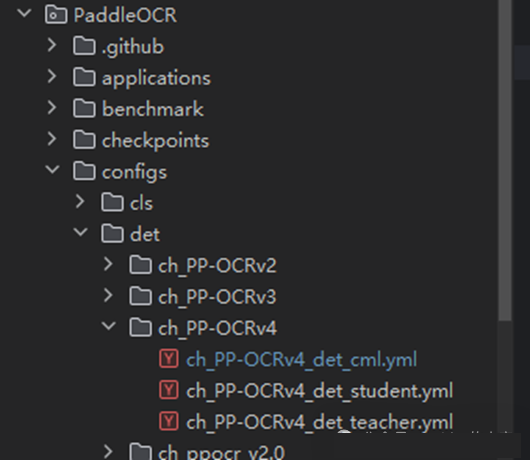
For easy management, pre-trained models are uniformly placed in the PaddleOCR/Preliminary_training folder, inference models in PaddleOCR/inference, datasets in PaddleOCR/train_data, and trained models in PaddleOCR/output.
OCRProject/
    - inference/  # Stores inference models
    - output/     # Stores output results
    - PaddleOCR/  # Uses internal PaddleOCR code
    - train_data/ # Training data
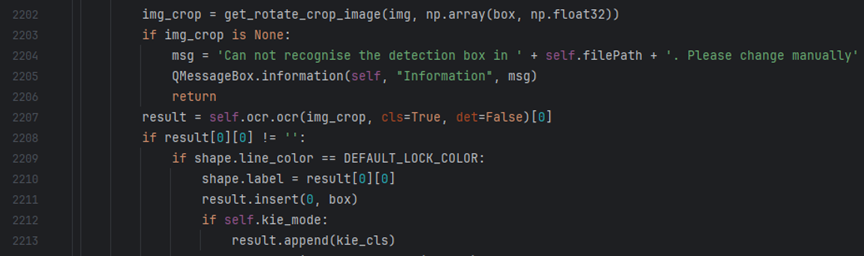
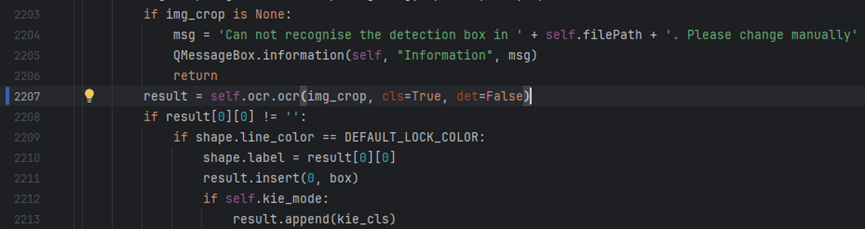
Open the PaddleOCR/PPOCRLabel/PPOCRLabel.py file and modify line 2207.
3 Environment Setup
This project requires Python 3.7 to 3.9, and dependent libraries must strictly follow the specified versions (except those without explicit versions). Environment setup is often the trickiest part of PaddleOCR training – even slight version mismatches in dependent libraries can cause errors.
3.1 Environment Configuration
3.1.1 Adding Environment Variables
Install Python and add the path to system variables – only then can you launch the image labeling application in cmd or PowerShell.
3.2 Virtual Environment
① Create and activate a virtual environment (refer to the previous article if needed).
② In the project root directory, pull the PaddleOCR code and check out the branch:
git clone https://gitee.com/paddlepaddle/PaddleOCR.git
cd PaddleOCR
git checkout release/2.7
pip install -r requirements.txt
③ Additional dependencies for CPU environment:
pip install paddlepaddle==2.6.0
pip install setuptools_scm==7.0.4
pip install xlrd
pip install paddlenlp==2.6.0
pip install paddleocr==2.6.1.3
pip install numpy==1    .24.0
Modify some code:
Open the PaddleOCR/PPOCRLabel/PPOCRLabel.py file and modify line 2207.
Change to:
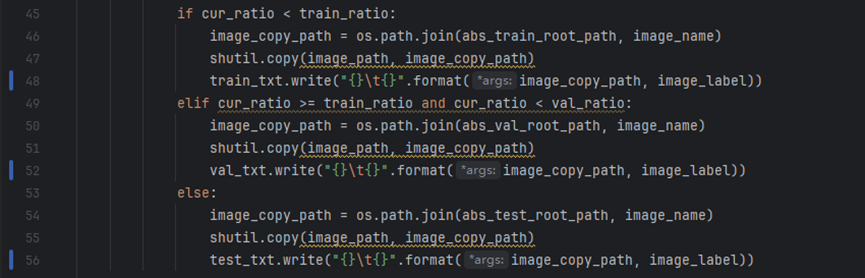
Open PaddleOCR/PPOCRLabel/gen_ocr_train_val_test.py and modify lines 48, 52, and 56.
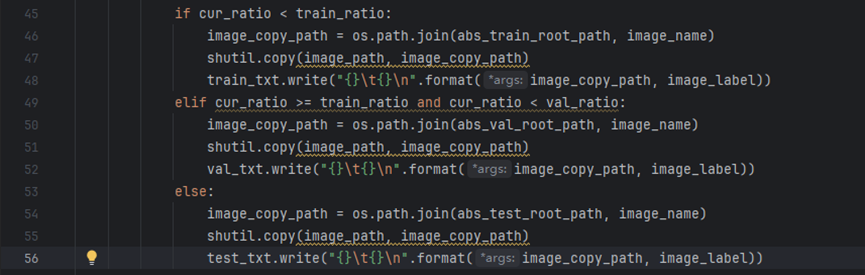
Change to:
Open PaddleOCR/tools/infer_kie_token_ser_re.py and modify lines 84 and 101:
Before modification:

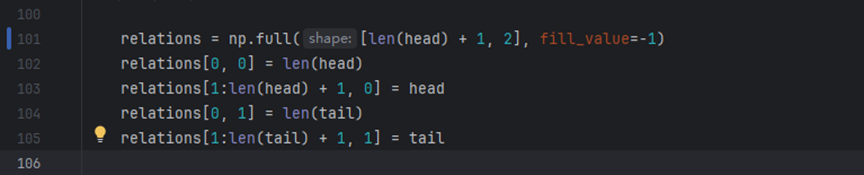
After modification:


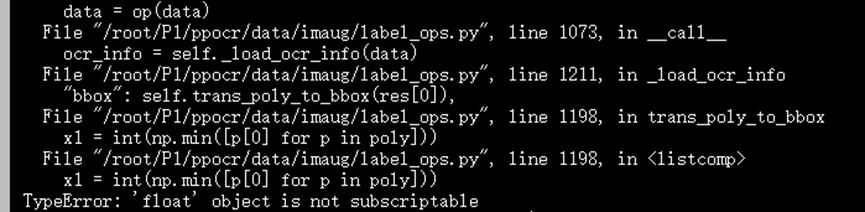
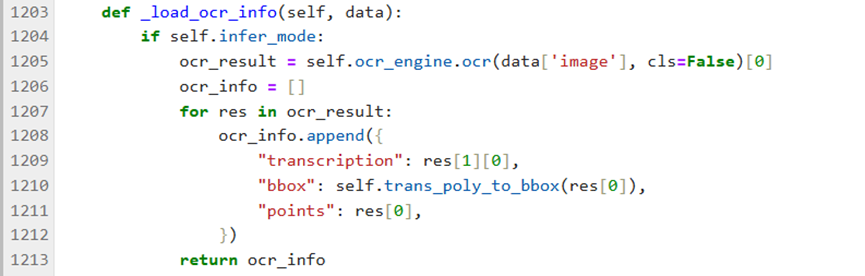
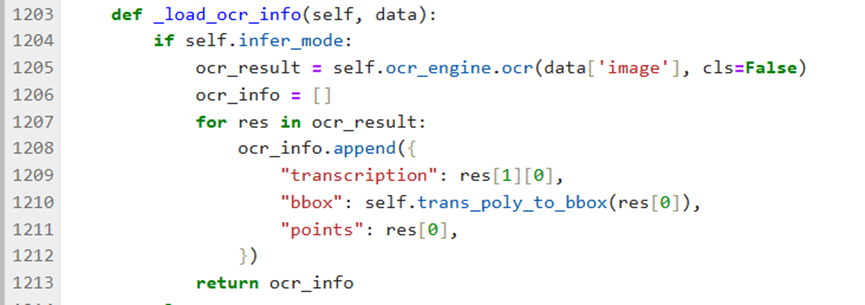
File PaddleOCR/ppocr/data/imaug/label_ops.py, modify line 1205.
Error during ser prediction before modification:
Before modification:
After modification:
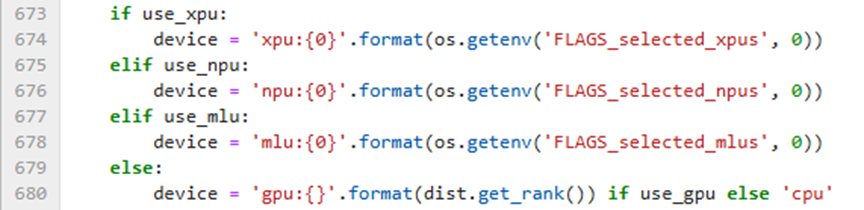
If running with GPU, modify line 680 in PaddleOCR/tools/program.py:
Before modification:
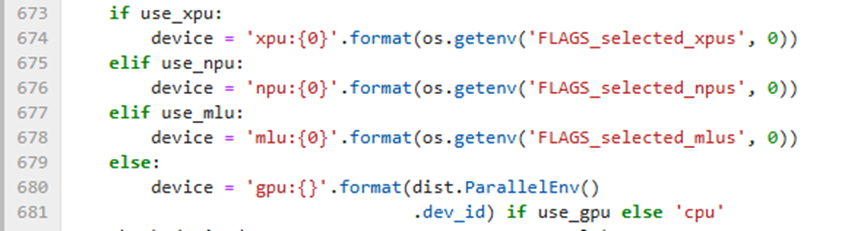
After modification:
Dataset Creation and Conversion
PPOCRLabel is a semi-automated labeling tool for OCR, with a built-in PP-OCR model for automatic data labeling and re-recognition. Written in Python3 and PyQT5, it supports rectangle box labeling, table labeling, irregular text labeling, and key information labeling modes. The exported format can be directly used for training PaddleOCR detection and recognition models.
4.1 Dataset Creation
4.1.1 Launching PPOCRLabel
① Navigate to the PaddleOCR/PPOCRLabel directory:
cd PaddleOCR/PPOCRLabel② Launch in Terminal:
python PPOCRLabel.py --lang ch --kie TrueThere might be errors here – fix them according to the terminal prompts.
4.1.2 Labeling
① Open [File] – [Open Directory] in the top-left corner (the directory should contain images for this training).
② Marking key regions
Label the regions you need, keeping them as spaced apart as possible and avoiding overlaps.
During labeling, any text unrelated to kie key information should be labeled as “other” (equivalent to background). Labeling should be done per text line. In terms of data volume, for relatively fixed scenarios, around 50 training images are usually enough for acceptable results. You can use PPOCRLabel to complete the KIE labeling process.
③ Recognition region results
After labeling, click “Re-recognize” on the right or use the shortcut Ctrl+R for text recognition. Once all key text regions in an image are labeled, click “Confirm” in the bottom-right to move to the next image.
④ Exporting results
After labeling all images or if you need to pause, export the relevant files. If you don’t need to fine-tune the text recognition model, you don’t need to export recognition results. Otherwise, check all options in the red box in the figure below.
⑤ After completion, four files will be added to the folder: fileState.txt, Label.txt, rec_gt.txt, and crop_img. Among them, images in crop_img are used to train the text recognition model, fileState records the labeling status of images, Label is the training label for the text detection model, and rec_gt is the training label for the text recognition model.
4.2 Dataset Conversion
4.2.1 det and rec datasets
In the PPOCRLabel directory, run the following command to split the dataset into training, validation, and test sets. Note that the dataset path should preferably not contain Chinese characters.
python gen_ocr_train_val_test.py --datasetRootPath /path/to/your/labeled/dataset/The script defaults to a 6:2:2 split for training, validation, and test sets. The split dataset is saved by default in the train_data folder of the parent directory, creating det and rec folders. For example:
The program automatically splits the data into training, test, and validation sets. Now the datasets for text detection (det) and text recognition (rec) are ready. The structure of det is as follows (same for rec):
det/
- test/     # Test set images
- train/    # Training set images
- val/      # Validation set images
- test.txt  # Test set image information
- train.txt # Training set image information
- val.txt   # Validation set image information
4.2.2 ser dataset
The ser training dataset can directly use the split det dataset, but some files need modification before fine-tuning the ser model.
Open the test.txt, train.txt, and val.txt files in the det dataset generated in 4.2.1, and replace the “key_cls” field name with “label”. Now the ser dataset is ready.
4.2.4 re dataset
Creating the re dataset is more complex – labels must be in key-value pairs, and connection relationships between labels need to be added. Since it’s not widely used, we won’t elaborate in detail, but here’s the data structure of the image information file for the re dataset:
[
    {
        "transcription": "Did you eat today?",
        "points": [[11, 59], [14, 59], [14, 97], [11, 97]],
        "id": 1,
        "linking": [[1, 2]],
        "label": "question"
    },
    {
        "transcription": "Yes",
        "points": [[25, 63], [36, 63], [36, 101], [25, 101]],
        "id": 2,
        "linking": [[1, 2]],
        "label": "answer"
    }
]
The question’s id should be larger than the answer’s id.
The linking format should have the question id first, followed by the answer id, e.g., [[question_id, answer_id]].
4 Model Training
4.1 Obtaining Pre-trained Models
Download pre-trained models from the official documentation. After downloading, create a Preliminary_training folder in the PaddleOCR root directory and extract the models into it.
Download links for det and rec pre-trained models:
Download links for ser and re pre-trained models:
4.2 Fine-tuning Training
4.2.1 det Model Training
Most models provided in PaddleOCR are general-purpose. In text detection, adjacent text lines are usually distinguished by their position proximity. Using general Chinese-English detection models can easily merge nearby different fields, increasing the difficulty of subsequent KIE tasks.
① Select the model you want and find the corresponding yml file.
② Download and extract the corresponding pre-trained model (download the inference model if no fine-tuning is needed).
③ Find the yml file to modify in PaddleOCR/configs.

④ Start training
Return to the PaddleOCR root directory and run the command to start training:
python tools/train.py -c configs/det/"path/to/the/above/yml/file" -o ...(temporarily modified configuration items, e.g., Global.use_gpu=False)“-c” refers to the training configuration file; “-o” is for replacing values in the configuration file, temporarily overriding certain settings.
⑤ Model evaluation
python tools/eval.py -c configs/det/"path/to/the/above/yml/file" -o Global.checkpoints=./output/det/best_accuracy(path to the best trained model)⑥ Convert to inference model
python tools/export_model.py -c configs/det/"the modified yml file above"4.2.2 rec Model Training
Fine-tuning for rec is the same as for det.
4.2.3 ser Training
Semantic entity recognition involves determining the category (e.g., name, address) of a given text line, using the vi_layoutxlm algorithm for fine-tuning.
① Select and download the model (only one available on the official website, no need to choose).
② Modify the configuration file ser_vi_layoutxlm_xfund_zh.yml – most settings are similar to det, with adjustments as needed.
③ Run the command to start training:
python tools/train.py -c configs/kie/vi_layoutxlm/ser_vi_layoutxlm_xfund_zh.yml -o Architecture.Backbone.checkpoints=/path/to/the/best/trained/model/④ Evaluate the accuracy of the trained model (note the difference from det):
python tools/train.py -c configs/kie/vi_layoutxlm/ser_vi_layoutxlm_xfund_zh.yml -o Architecture.Backbone.checkpoints=/path/to/the/best/trained/model/⑤ Convert to inference model
python tools/export_model.py -c configs/kie/vi_layoutxlm/ser_vi_layoutxlm_xfund_zh.yml -o Architecture.Backbone.checkpoints=/path/to/the/best/trained/model/The exported inference model files are similar to those of det.
⑥ Perform inference testing
python ppstructure/kie/predict_kie_token_ser.py \
   --kie_algorithm=LayoutXLM \
   --ser_model_dir=/path/to/the/converted/ser/inference/model/ \
   --image_dir=/path/to/the/image/for/prediction/ \
   --ser_dict_path=/path/to/the/category/file/
The ser visualization results are saved to the Global.save_res_path.